How to File an Issue
Filing an issue is one of the simplest ways to help improve Agenta. Please follow these steps and include the right details when you report a problem.
Reporting a Bug
Bug Report Template
We provide issue templates to help you report bugs clearly. They ask for the problem, the steps to reproduce it, and the details we need to investigate.
Create an issue by using the issue chooser and select the template that best matches your report.
Providing Additional Information
To help us diagnose and resolve the issue quickly, please follow these steps:
-
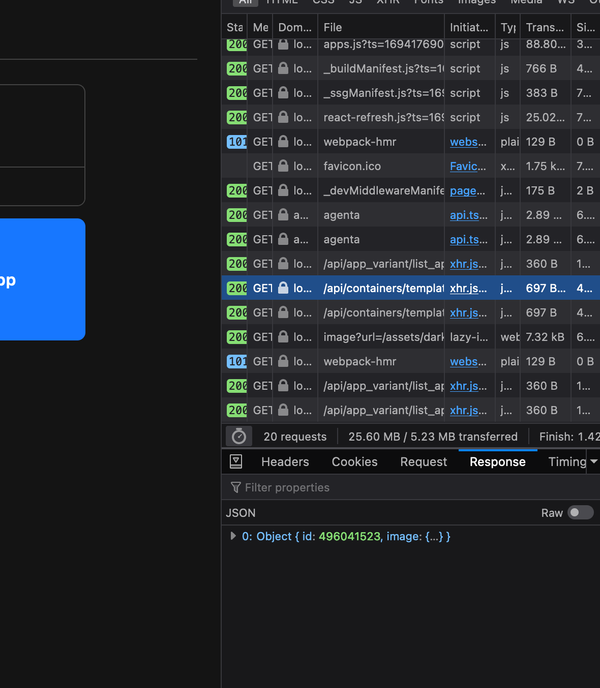
Network Logs in the Browser:
- Open your browser's developer console (usually by pressing F12 or right-clicking and selecting "Inspect").
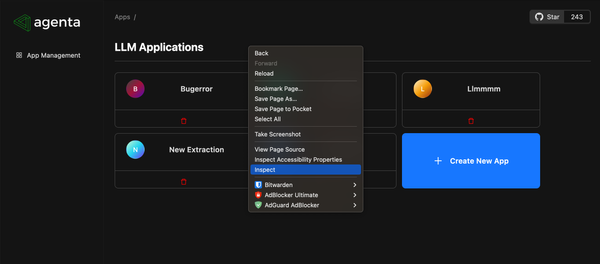
- Navigate to the "Network" tab.
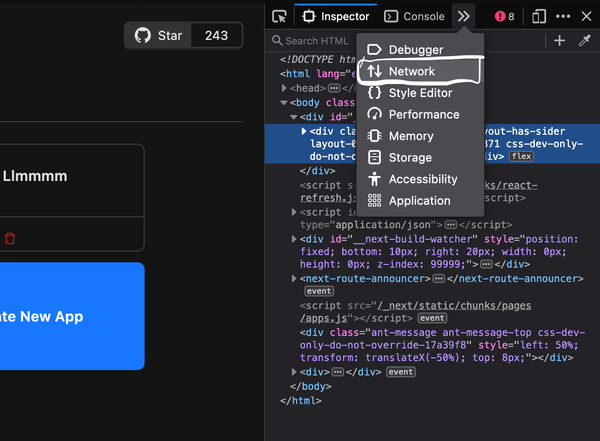
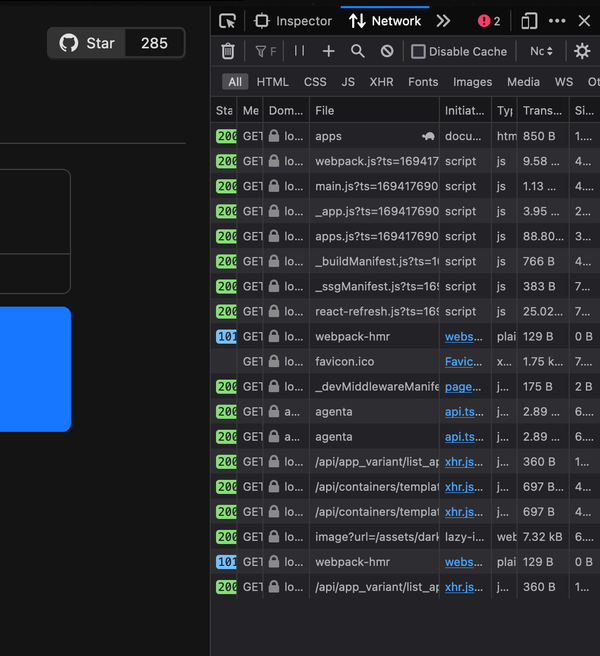
- Reproduce the issue by triggering what caused it before and all the requests made will be logged in the Networks tab.
- Take a screenshot of the network logs or copy and paste any relevant log entries.
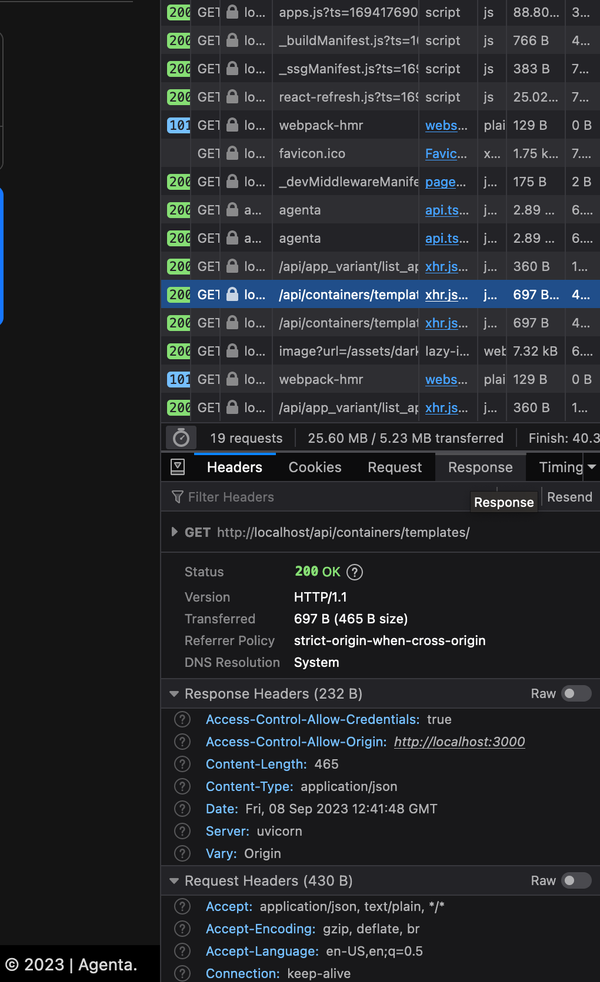
- In particular you can open a specific request, maybe the one has returned 404 or 400 or 500, then click on response and show take a screenshot of it.
-
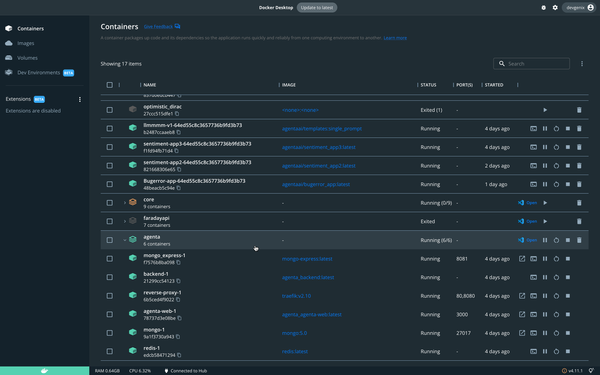
Docker Containers Information:
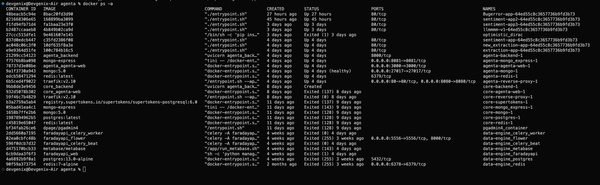
- If you're using Docker, open Docker Desktop (if available) or use the terminal/command line and run the command;
docker ps -a- Provide a screenshot showing the list of running and stopped containers.
-
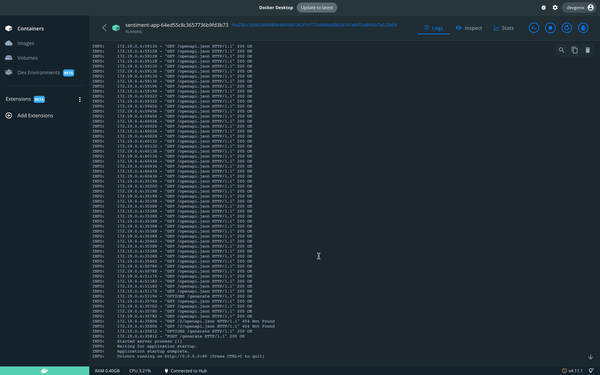
If your issue is associated with a specific llm app;
-
On Docker Desktop, open the container of that llm app and provide a screenshot of it. The Container name would start with the name of your llm app, followed by the app variant name (If you've created more than one variant).
-
In terminal/command line, run the command below and provide a screenshot of it;
-
docker logs CONTAINER_NAME_OR_ID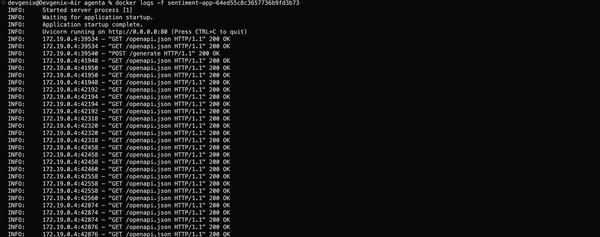
You can get the Container name or ID by running the previous command
docker ps -a- For the agenta-backend container, provide the logs;
- by running:
docker logs agenta-backendand include the output, or more importantly provide a screenshot of it. - by opening the container in Docker Desktop and providing a screenshot of it.
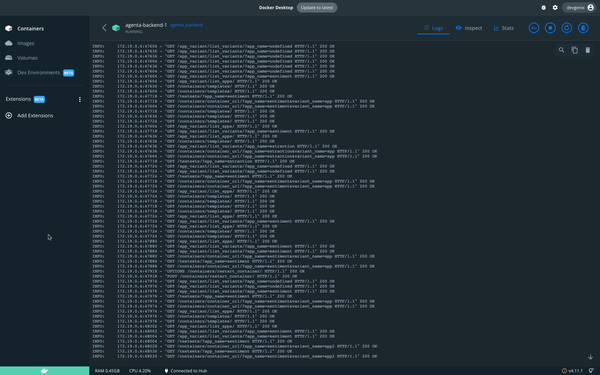
- by running:
By providing these details, you help us pinpoint the problem and work towards a resolution more efficiently.